Local LLM Configuration
We have made available a locally hosted LLM API service at https://llm-1.stat.ubc.ca for use by faculty and staff.
In order to send prompts to the service, you'll first need an API key. Simply open the link https://llm-1.stat.ubc.ca on any browser and log in with your StatNet username and password. Then you can generate a key with the dialogue after you log in. Make sure to copy the key and save it in a secure location.
To send prompts to the API, there are a few options.
opencode
An open source terminal based coding assistant very similar to Claude Code. Installation instructions are here https://opencode.ai/docs/#install
Once installed, open a terminal window and launch it with the command opencode
Close it and then navigate to and open the file ~/.config/opencode/opencode.jsonc
Update the configuration file to the following replacing "YOUR_API_KEY" placeholder with the API key generated earlier. Then launch opencode again and you should now be able to send prompts to our local LLM.
{
  "$schema": "https://opencode.ai/config.json",
  "default_agent": "plan",
  "permission": {
    "edit": "ask"
  },
  "provider": {
    "llm-1-stat": {
      "npm": "@ai-sdk/openai-compatible",
      "name": "Qwen 3.8 (Stat UBC)",
      "options": {
        "baseURL": "https://llm-1.stat.ubc.ca/v1",
        "apiKey": "YOUR_API_KEY"
      },
      "models": {
        "qwen/Qwen3.8-27B-FP8": {
          "name": "Qwen 3.8 Coder",
          "attachment": true,
          "modalities": {
            "input": ["text", "image"],
            "output": ["text"]
          },
          "limit": {
            "context": 32768,
            "output": 16384
          }
        }
      }
    }
  },
  "model": "llm-1-stat/qwen/Qwen3.8-27B-FP8"
}
Visual Studio Code (VSCode)
- Install the Continue extension within VSCode
- Within Continue, Add Chat Model
+ - Choose GPT-5.4 Pro as the template so "provider: openai" will be in the config.yaml file.
The file is in
~/.continue/config.yaml replace 'your llm-1 API key' with the API key generated earlier.- name: Qwen 3.8 (Stat UBC) provider: openai model: qwen/Qwen3.8-27B-FP8 apiBase: https://llm-1.stat.ubc.ca/v1 apiKey: your llm-1 API key roles: - chat - edit - apply capabilities: - image_input
- Save the file.
- Restart VSCode or Reload VS Code:
Cmd/Ctrl+Shift+P→ "Developer: Reload Window". - Open the Continue panel and try a chat message.
The Continue extension has three modes Chat, Plan, and Agent:
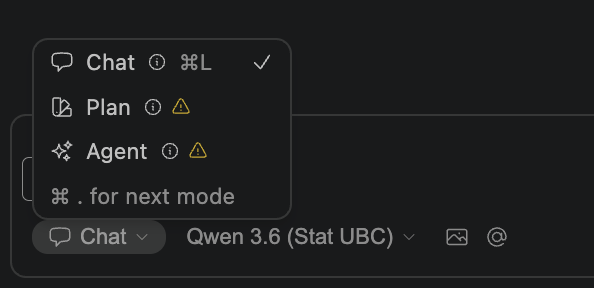
Here are descriptions for the three modes:
Chat Mode: Pure conversation with no tools.
Plan Mode: Safe, read-only tools for planning and exploration without making edits.
Agent Mode: Full tool access to autonomously make changes to your codebase.
Claude Code
Claude Code is a proprietary terminal based coding assistant maintained by Anthropic. While it works for now, it's not guaranteed to work with our local LLM in the future if they suddenly decide that they won't support it.
Install Claude Code with instructions here https://code.claude.com/docs/en/quickstart
Open a terminal window and set the following environment variables. Replace "YOUR_API_KEY" with the API key generated earlier.
ANTHROPIC_BASE_URL="https://llm-1.stat.ubc.ca"
ANTHROPIC_API_KEY="YOUR_API_KEY"
Start Claude Code with command claude code